
How to Remove Duplicates in Excel: 3 Professional Methods
Thành Thái
4/22/2026
Method 1: The "Remove Duplicates" Tool (Fast & Simple)
This is the most common method for a quick cleanup. Use this when you want to permanently delete redundant rows from your dataset.
How to do it:
Select any cell within your data range.
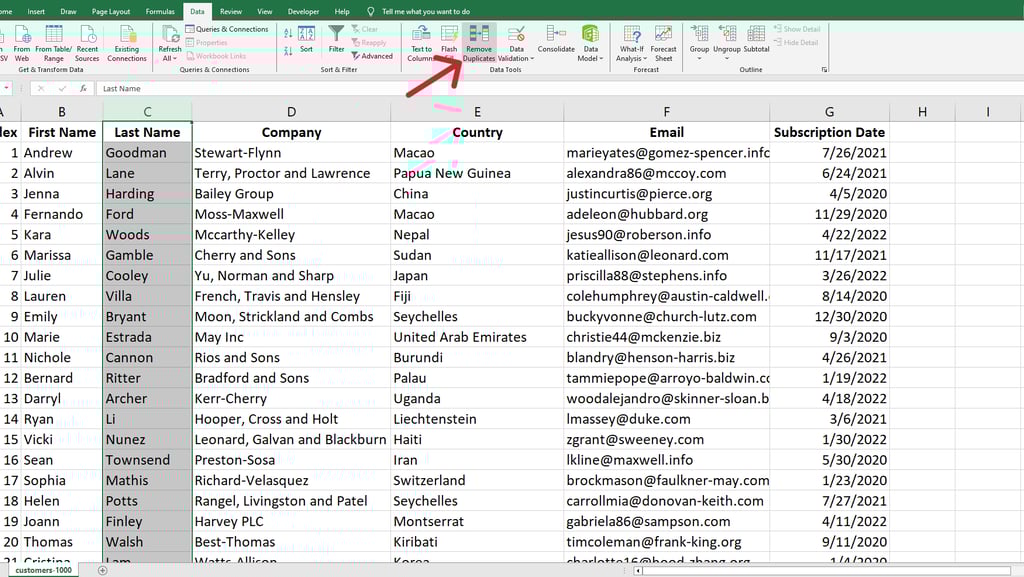
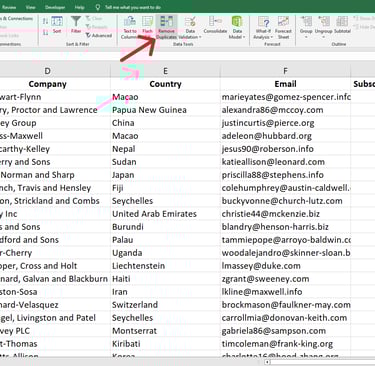
Go to the Data tab on the Ribbon.
In the Data Tools group, click Remove Duplicates.
In the dialog box, select the columns you want Excel to check for duplicates.
Pro Tip: If you want to remove rows where only the "Email" is the same, uncheck all other columns.
Click OK.
Warning: This method is destructive. It deletes the data permanently. Always keep a backup of your original list before using this tool!
Final Thoughts
Mastering these three techniques will save you hours of manual scrolling and ensure your spreadsheets remain a "Source of Truth" for your business.
Method 2: Using the UNIQUE Function (The Modern Way)
If you are using Excel 365 or Excel 2021, the UNIQUE function is a game-changer. Unlike Method 1, this is "non-destructive"—it leaves your original data untouched and creates a clean list elsewhere.
The Formula:
=UNIQUE(A2:B500)
Why it’s better:
Dynamic: If you add a new unique name to your original list, the formula results update automatically.
Cleanliness: You can keep your "Raw Data" on one sheet and your "Clean Data" on another, which is a best practice in data management.
Method 3: Advanced Filtering with Power Query (The Pro Choice)
For large datasets (thousands of rows) or data that you import from external sources (CSV, Web, or SQL), Power Query is the most robust solution.
How to do it:
Select your data and press Ctrl + T to turn it into a Table.
Go to Data > From Table/Range. This opens the Power Query Editor.
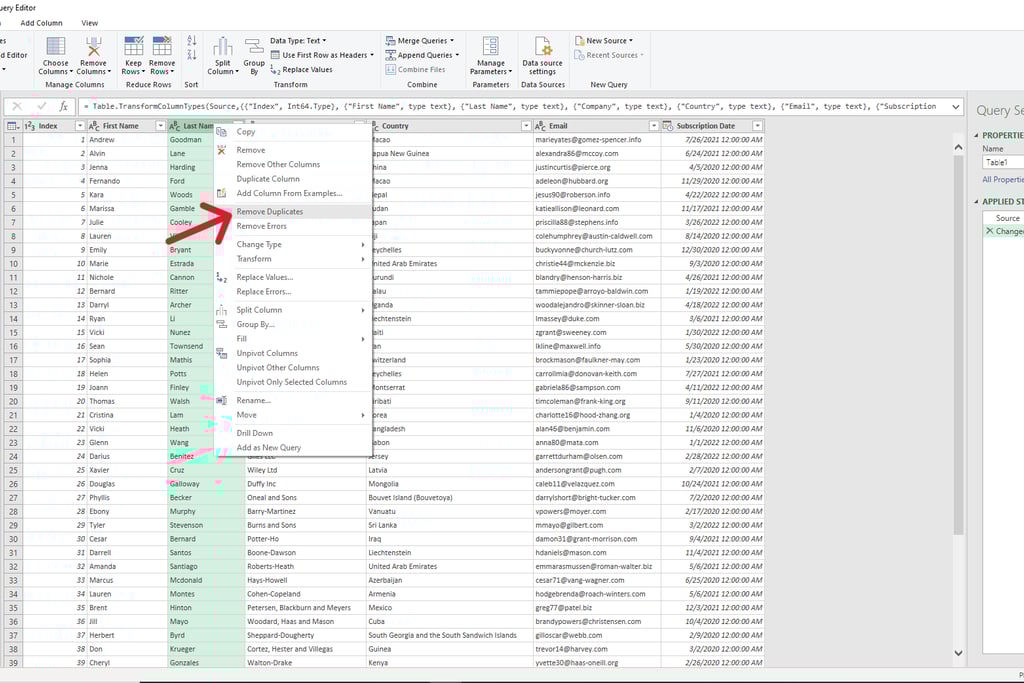
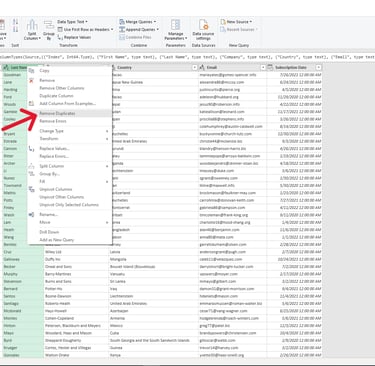
Right-click the header of the column(s) you want to check.
Select Remove Duplicates.
Click Close & Load.
Why pros use Power Query:
Power Query remembers your steps. Next month, when you replace the old data with new "dirty" data, you simply click Refresh, and Excel automatically removes the duplicates for you again. No manual work required!
Which Method Should You Choose?
Product
© 2026. All rights reserved.