
If Your Spreadsheet Slow. Here are 7 Tips to Speed Up Heavy Google Sheets
Thành Thái
4/17/2026


1. Eliminate Volatile Functions
Functions like NOW(), TODAY(), RAND(), and RANDBETWEEN() are "volatile." This means they recalculate every single time you make a change anywhere in the spreadsheet.
The Fix: If you only need today's date for a report, type it manually or use the shortcut Ctrl + ;. If you must use them, try to limit them to a single cell and reference that cell elsewhere.
2. Convert Formulas to Static Values
If you have thousands of rows of VLOOKUP or complex math that won't change (e.g., historical data from 2024), there is no need for the formula to run 24/7.
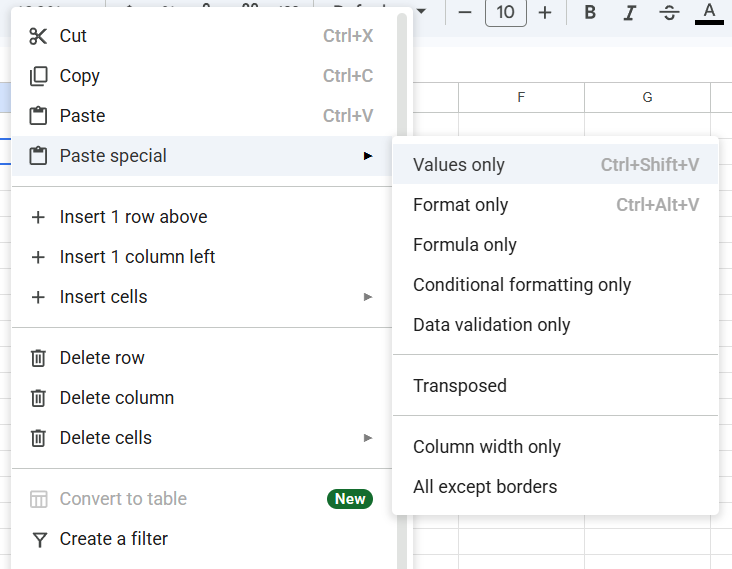
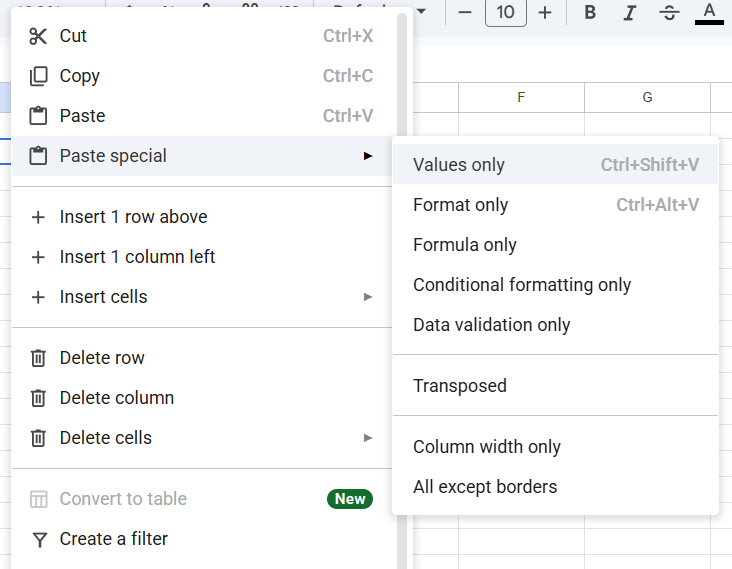
The Fix: Select the range, copy it (Ctrl + C), and then Paste Special > Values only (Ctrl + Shift + V). This removes the calculation burden from Google’s servers.
3. Use the "Golden Rule" of Ranges
Avoid using open-ended references like A:Z if your data only goes to row 1,000. When you use A:Z, Google Sheets checks all 10,000,000 potential cells in a sheet.
The Fix: Be specific. Use A1:Z1000. This significantly reduces the "search area" for your formulas.
4. Limit Conditional Formatting
Conditional formatting is beautiful, but it is a performance killer. Every time you scroll or edit, Google has to re-evaluate the rules for every single cell.
The Fix: Remove unnecessary rules. If you have 50 different colors in one sheet, consider using a simple helper column with text labels instead.
5. Master the QUERY and ARRAYFORMULA
Instead of dragging a formula down 5,000 rows, use one ARRAYFORMULA at the top.
Why? Google Sheets handles one complex array calculation much faster than 5,000 individual cell calculations.
Pro Tip: The =QUERY() function is incredibly efficient for filtering and summarizing large datasets compared to multiple FILTER or SUMIFS functions.
6. Delete Empty Rows and Columns
By default, Google Sheets often adds 1,000 rows. If your data only uses 50 rows and 5 columns, the other 9,000+ cells are still being processed in the background.
The Fix: Select all empty columns and rows, right-click, and Delete. A "lean" sheet is a fast sheet.
7. Use Helper Columns for Complex Logic
Huge, nested formulas like =IF(A1=1, IF(B1=2, VLOOKUP(...))) are hard for Google to process efficiently.
The Fix: Break the logic into 2 or 3 "Helper Columns." Calculate the first part in Column C, the second in Column D, and the final result in Column E. This "modular" approach is much easier on the calculation engine.
Final Thoughts
A slow spreadsheet isn't just annoying; it’s a productivity killer. By applying these 7 tips, you can turn a sluggish file into a high-performance data tool.
Product
© 2026. All rights reserved.