
The Safe Lab Guide: How to Download and Unblock VBA Files from the Internet
Thành Thái
3/20/2026
You’ve found the perfect Excel template at Smart Sheet Lab. You download it, open it, and… nothing happens. Or worse, a scary red bar appears at the top saying: "Security Risk: Microsoft has blocked macros from running because the source of this file is untrusted."
Don’t panic. This is a standard security feature introduced by Microsoft to protect your computer. In this guide, we will show you the professional way to safely download, "Unblock," and enable VBA macros so you can get back to work.
Why does Microsoft block Macros?
VBA (Visual Basic for Applications) is a powerful language. Because it can automate tasks, malicious users could theoretically write code to harm your system. To prevent this, Windows automatically "marks" any file downloaded from the internet with a "Mark of the Web" (MoTW).
Even if the file is 100% safe (like the ones here in our Lab), you must manually tell Windows that you trust the source.
Step 1: Downloading Safely
When you download a file from Smart Sheet Lab or any other source:
Save the file to a specific folder (e.g., C:\Work\Templates) rather than leaving it in your messy "Downloads" folder.
Do not open the file immediately from your browser’s download bar.
Step 2: The "Unblock" Secret (The Most Important Step)
If you see the Red Security Bar, simply clicking "Enable Content" won't work anymore in modern versions of Excel. You must unblock the file at the System level:
Close the Excel file if it is open.
Open File Explorer and go to the folder where you saved the file.
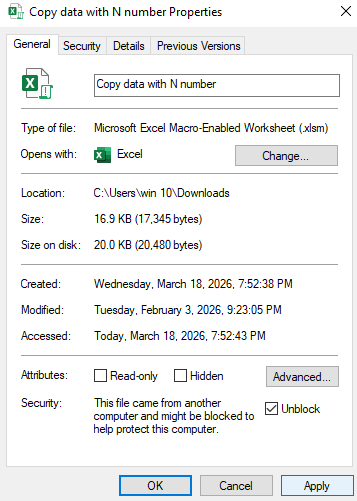
Right-click on the file and select Properties.
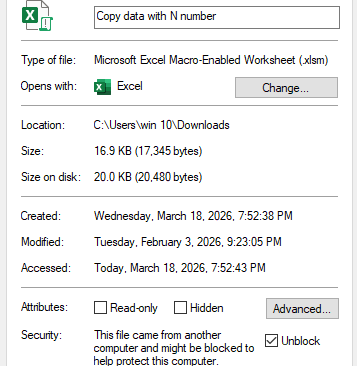
At the bottom of the General tab, look for the Security section.
Check the box that says "Unblock".
Click Apply and then OK.
Now, Windows recognizes this file as a "Trusted" guest in your system.
Step 3: Enabling Content in Excel
Now that you have unblocked the file, open it again.
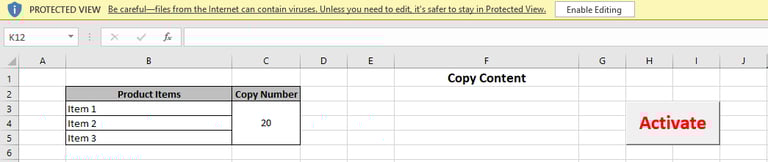
You will likely see a Yellow Bar that says "Macros have been disabled."
Since you have already unblocked the file in Step 2, you can now safely click Enable Editing.
The macros, buttons, and automation features will now come to life!
Step 4: Adding a "Trusted Location" (For Power Users)
If you plan to download many templates from our Lab, you don't want to unblock every single file. You can create a "Trusted Folder" where everything inside is automatically allowed to run.
Open Excel and go to File > Options.
Select Trust Center > Trust Center Settings...
Click on Trusted Locations.
Click Add new location...
Browse to your folder (e.g., C:\MySmartSheets) and check "Subfolders of this location are also trusted."
Click OK.
Step 5: Safety First—Check the Code
In the Smart Sheet Lab, we encourage curiosity! Before you run a macro, you can always peek at the code to see what it does:
Press ALT + F11 to open the VBA Editor.
Look through the Modules.
A safe macro looks like the ones we teach in our [VBA for Beginners guide]. If you see strange commands trying to access your Windows System files or Registry, do not run them.
Final Lab Report
Downloading automation tools should be exciting, not frustrating. By following the Unblock → Enable → Trust workflow, you ensure that your computer stays secure while you enjoy the power of professional Excel automation.
Product
© 2026. All rights reserved.