
VBA Macros for Beginners: 5 Steps to Automate Your First Daily Report
Thành Thái
3/21/2026

Does your morning routine involve the same tedious tasks? Exporting data, deleting empty rows, formatting headers, and calculating totals? If you spend more than 10 minutes a day on repetitive tasks, you are ready for the "Lab Treatment."
In this guide, we will show you how to build your very first VBA Macro to automate a daily report. No prior coding experience required—just a bit of logic and the right steps.
What is a VBA Macro?
VBA (Visual Basic for Applications) is the programming language of Excel. Think of a Macro as a "Record" button for your actions. Once you record or write these actions, Excel can replay them in milliseconds, turning hours of work into a single click.
Step 1: Enable the Developer Tab
By default, Excel hides its most powerful tools. To start your experiment, you need to bring them to the surface.
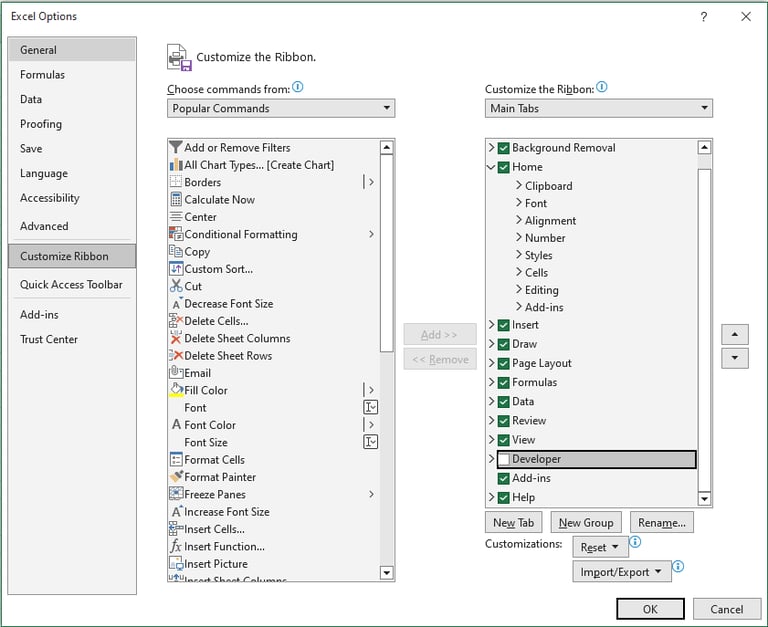
Right-click anywhere on your Ribbon (the top menu).
Select Customize the Ribbon.
In the right-hand list, check the box next to Developer.
Click OK.
You now have access to the "Laboratory" controls!


Step 2: Use the Macro Recorder (Your Training Wheels)
The easiest way to start is by letting Excel watch you work.
Go to the Developer Tab and click Record Macro.
Name it Daily_Report_Format (Note: Use underscores, no spaces!).
Perform your routine: Format headers to bold, change the background color, and add a "Total" sum at the bottom.
Once finished, click Stop Recording.
Step 3: Peer into the "Lab" (The VBA Editor)
Now, let’s see the "DNA" of your actions.
Press ALT + F11 to open the VBA Editor.
In the left sidebar (Project Explorer), look for Modules > Module1.
Double-click it. You will see lines of code that Excel generated while you were recording.
Smart Lab Tip: Don't be intimidated by the code. It usually follows a simple logic: Range("A1").Font.Bold = True simply means "Make the font in cell A1 bold."
Step 4: Clean and Test Your Code
Recorded code is often "messy." To make it a professional Smart Sheet Lab solution, you can simplify it. For example, if you want to clear a sheet before starting, you can add this line:
Cells.ClearContents
Try running your macro on a fresh sheet of data by pressing the Play button (green arrow) in the Editor or using ALT + F8.
Step 5: Save as an Excel Macro-Enabled Workbook
This is the most critical step. If you save your file as a standard .xlsx, your macro will be deleted forever!
Go to File > Save As.
Change the file type to Excel Macro-Enabled Workbook (*.xlsm).
Product
© 2026. All rights reserved.